Getting Started
Login, dashboard overview, navigation, user roles
Logging In
Navigate to your admin panel URL (e.g., admin-ps.praticable.eu). You will see the login page.
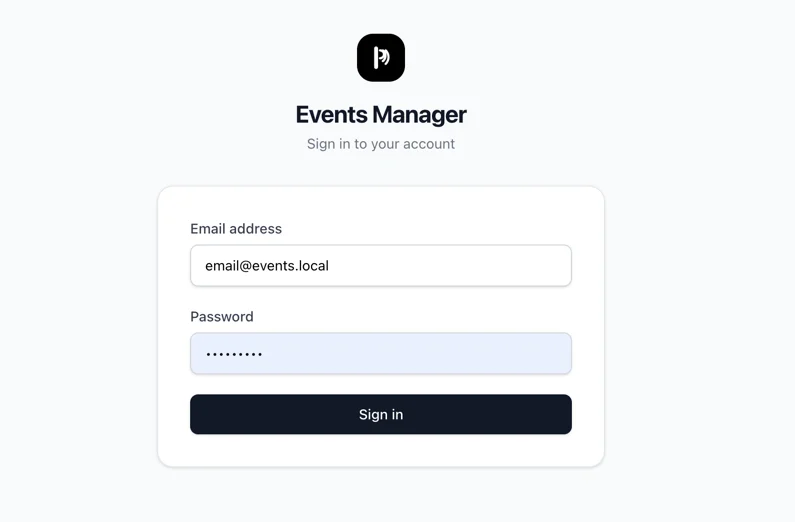
Login Form
| Field | Type | Required | Description |
|---|---|---|---|
| Email address | Yes | Your admin account email | |
| Password | Password | Yes | Your admin account password |
Click Sign in to access the admin panel. If your credentials are incorrect, you will see the error message "Invalid email or password".
Dashboard
After logging in, you land on the Dashboard. This is your overview of the platform's activity.
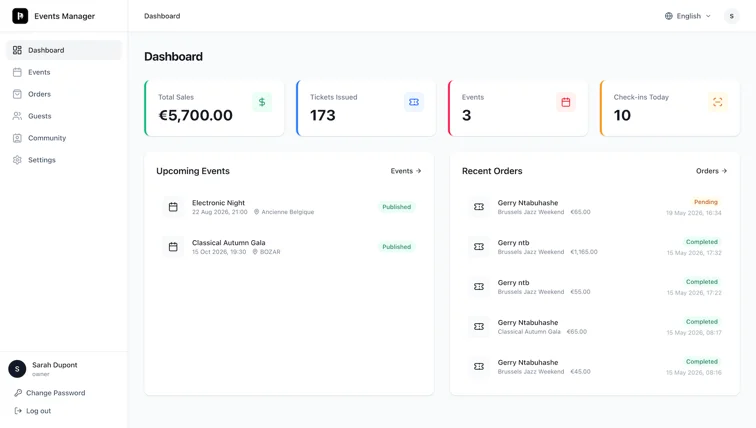
Metrics
The dashboard displays four key metric cards:
- Total Sales - Sum of all completed order amounts
- Tickets Issued - Total number of tickets generated across all events
- Events - Total number of events created
- Check-ins Today - Number of tickets scanned today
Upcoming Events
Shows the next 5 upcoming events with their name, date, venue, and status. Click any event to go to its detail page. If you have no events yet, you will see a prompt to create your first one.
Recent Orders
Shows the 5 most recent orders with buyer info, event name, total amount, and status badge. Click any order to view its details.
Navigation
The sidebar (left panel on desktop, hamburger menu on mobile) provides access to all sections:
| Menu Item | Description |
|---|---|
| Dashboard | Overview metrics and recent activity |
| Events | Create and manage events |
| Orders | View and manage orders |
| Guests | Contact database for invitations |
| Community | Buyer profiles and purchase history |
| Settings | Venues, ticket templates, promo codes, team |
The top bar shows breadcrumbs for your current location and a language switcher (EN/FR).
User Roles
There are three admin roles with different access levels:
| Role | Access |
|---|---|
| Owner | Full access to everything, including team management |
| Editor | Can create and manage events, orders, guests, venues, templates, promo codes |
| Viewer | Read-only access to all sections |
Your role is displayed in the sidebar under your name. Only owners can invite new team members or change roles.